Software — MbltHmi
MBLT HMI
Operator screens on a panel PC, or in any browser on the network.
Early release 0.1.0
MbltHmi — command line and desktop app
What it does
Draw the screens, bind them to PLC tags, try them on simulated values, and run them on a panel PC or in a browser. The runtime is the application itself - connections, tags, alarms, logging and users keep running with no screen open, and a page is only a client.
- 67 widget types on a drawn canvas, with bindings and actions
- Ten connection kinds, including MBLT PLC's tag link, Modbus TCP and RTU, MQTT, OPC UA, the MB Lab stream, a DataStreamerX device, a raw socket, HTTP and simulated values - every one of them two-way, because an operator screen that cannot write is a dashboard
- The same OPC UA server as MBLT PLC, written from IEC 62541 rather than wrapped, so Node-RED, SCADA and any other OPC UA client can browse, read, write and subscribe to the tag table
- The HardwareRTD engine as a connection in its own right - every device that engine owns, serial, TCP, Modbus, CAN and SCPI, on this PC through its pipe or from another PC over the network
- Alarms, and logging to SQLite, SQL Server, ODBC or CSV behind a disk queue so nothing is lost when the database is away
- Recipes, users and an audit trail - every write and ack checked in the runtime, not in the page
- Imports an MBLT PLC project and tells you what is new, changed, renamed or gone
- A 102-page manual
Worth knowingPre-1.0. Every driver has been checked against a peer, but no serial port was opened on this machine, so Modbus RTU and the stream and socket drivers over a COM port are untried.
On video
Seven recordings of it actually running.
Screens of a program that moves are only half of it, so here it is moving. The real designer and the real runtime, on the examples that ship with it. Every panel is bound to tags and driven by the simulated runtime, so what moves is what the tags did. Nothing plays until you press it.
Getting started
What it looks like to actually use it.
Four steps from a PLC project to an operator screen running on simulated values. No panel, no plant, and no typing the tag list twice.
-
1
Take the tags from the PLC project
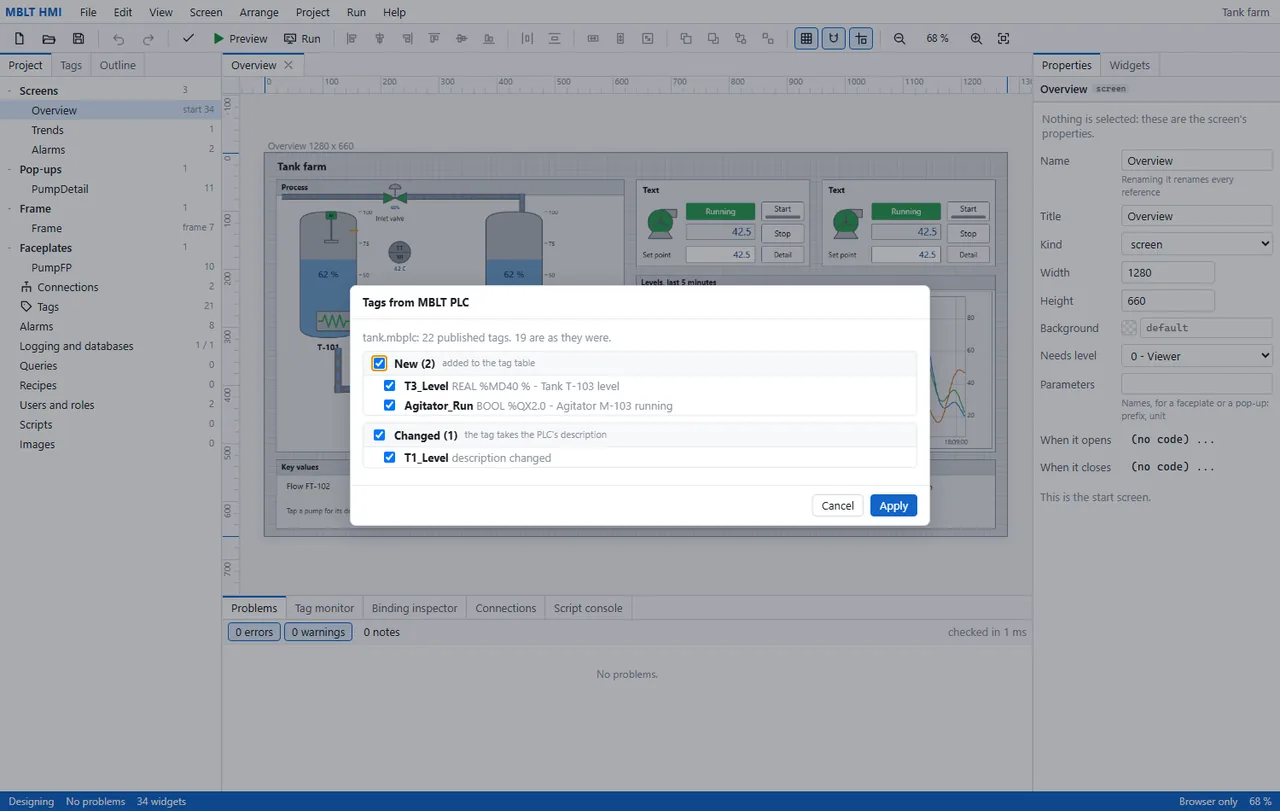
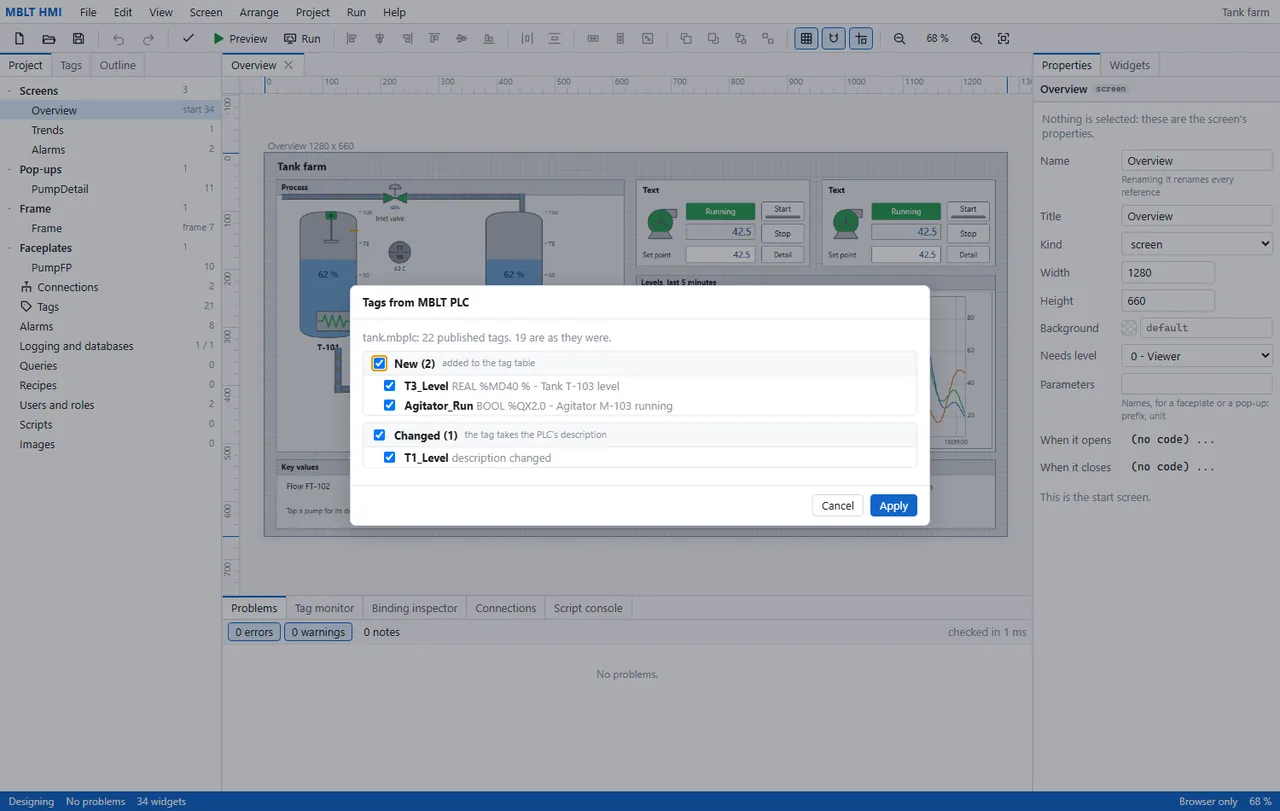
It opens the MBLT PLC project and reconciles the tag table against it: twenty-two published tags, nineteen exactly as they were, two new ones with their addresses and descriptions, and one whose description changed in the PLC and should change here. Every line has a tick, so you take what you want. This is the step that stops an HMI drifting away from the controller it is supposed to be showing.
-
2
Let it draw the commissioning screen
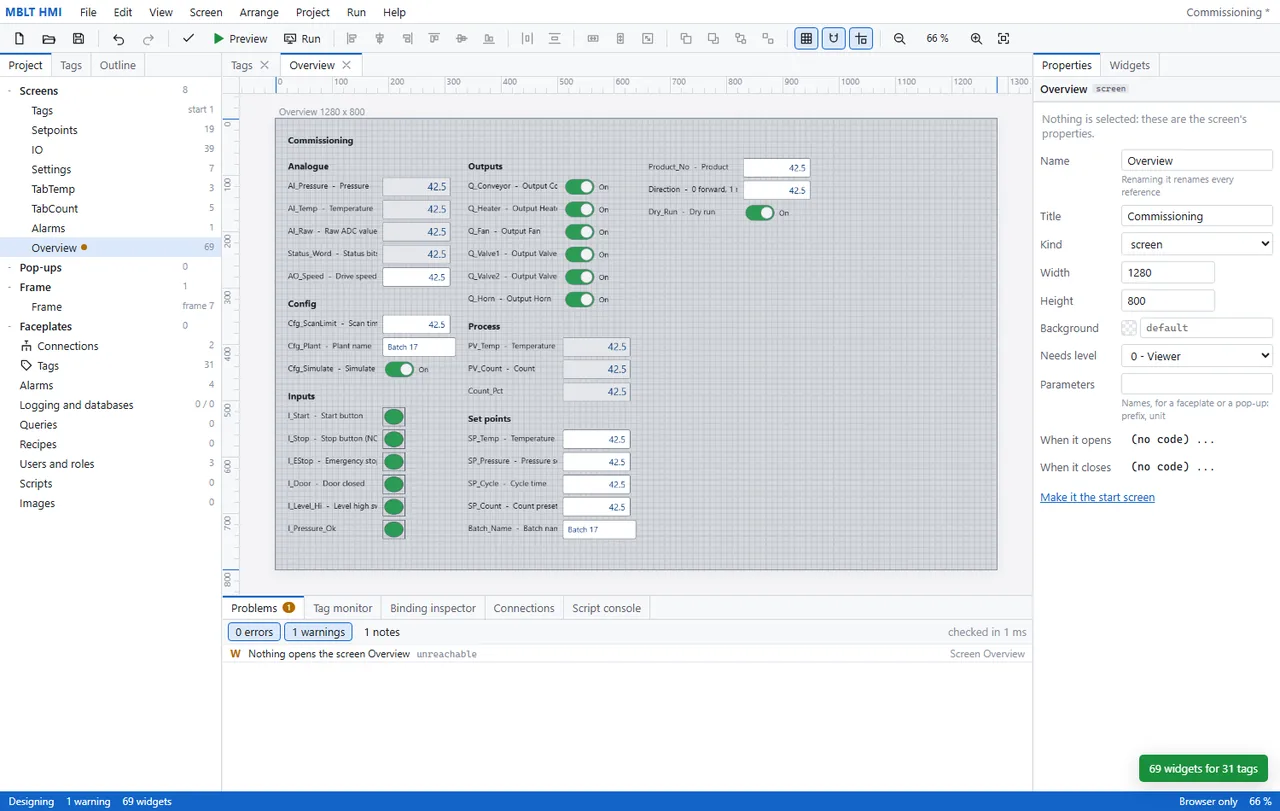
Sixty-nine widgets for thirty-one tags, generated - analogue inputs as numeric fields, outputs as switches, digital inputs as lamps, set points as editable boxes, each with the tag's own description beside it. Not a screen for an operator, a screen for the week you are commissioning, when what you need is every tag in one place. The warning at the bottom is already doing its job: nothing opens this screen yet, so it is unreachable.
-
3
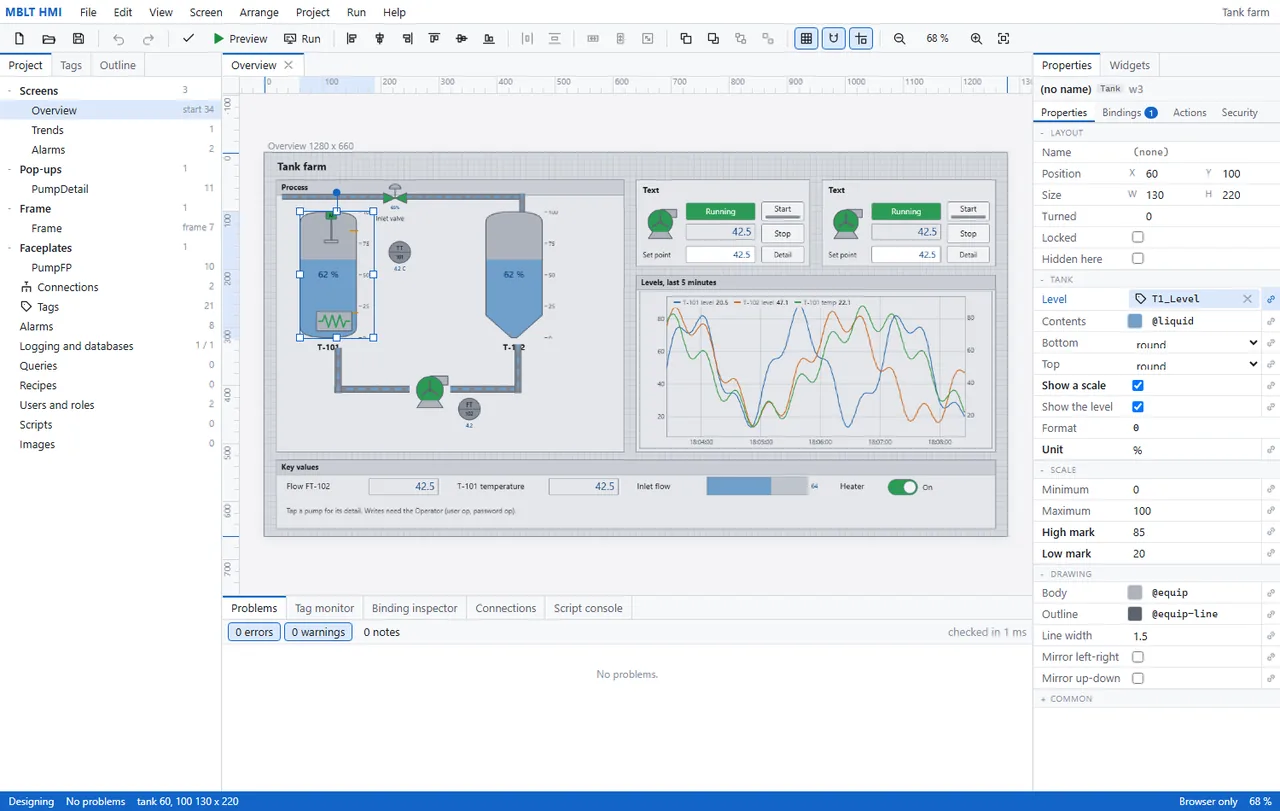
Bind a property, and test it before anything runs
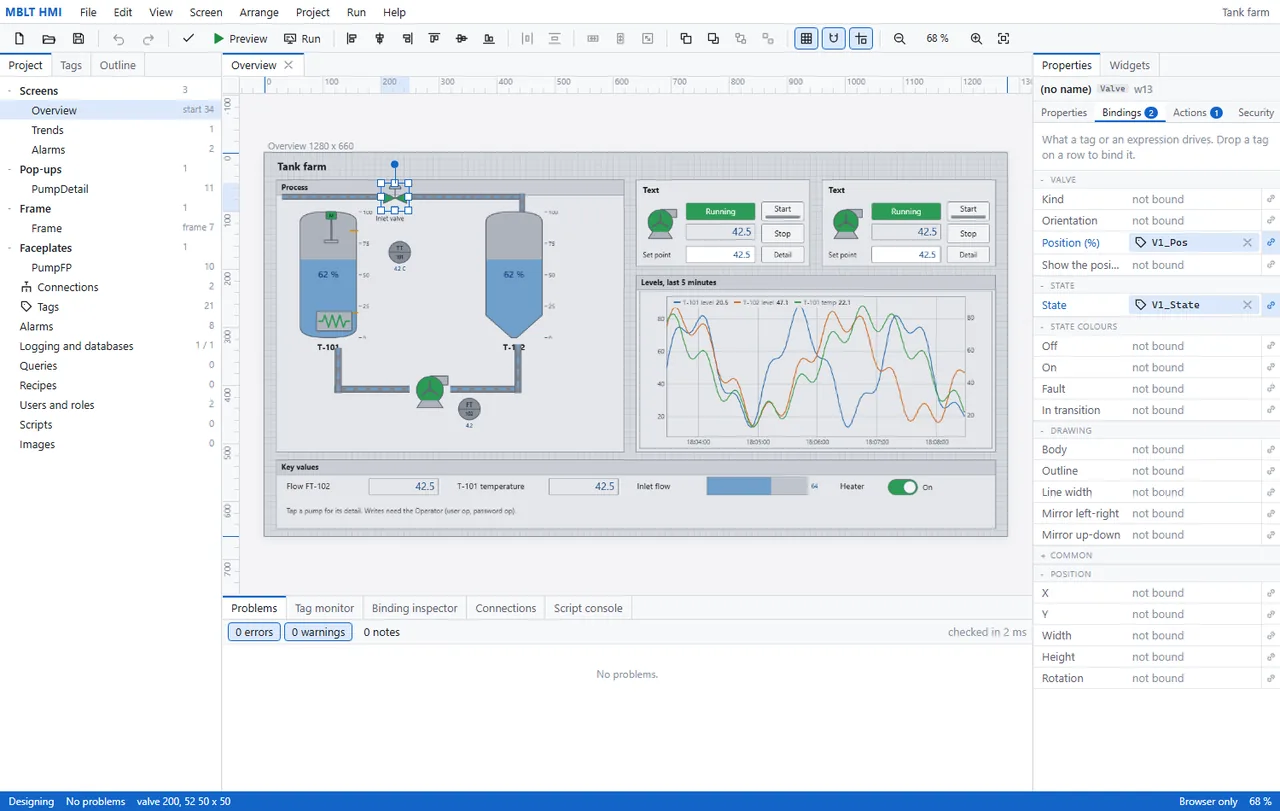
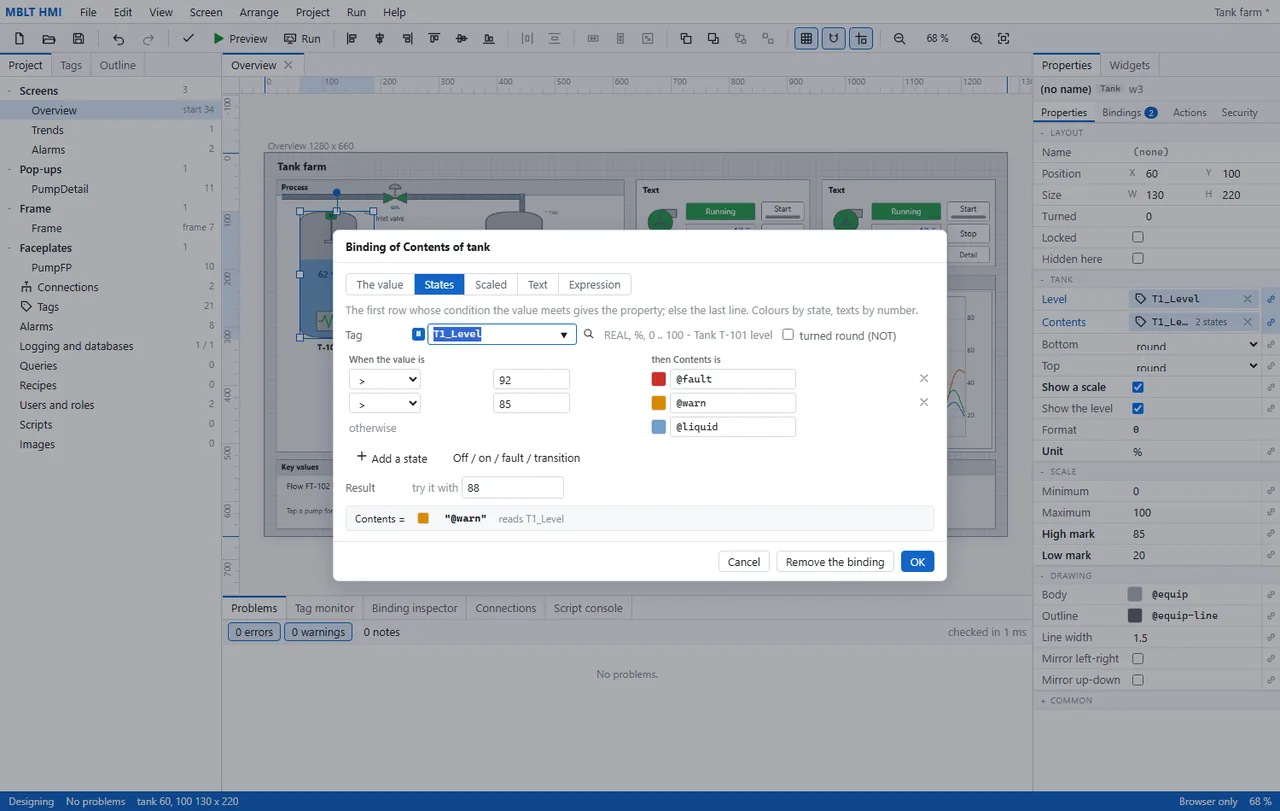
The tank's fill colour bound to T1_Level by state: above 92 % it is the fault colour, above 85 % the warning one, otherwise the liquid colour. The row underneath is the part worth having - type a value, here 88, and it tells you the binding resolves to the warning colour, before any plant or simulator is involved.
-
4
Preview it on simulated values
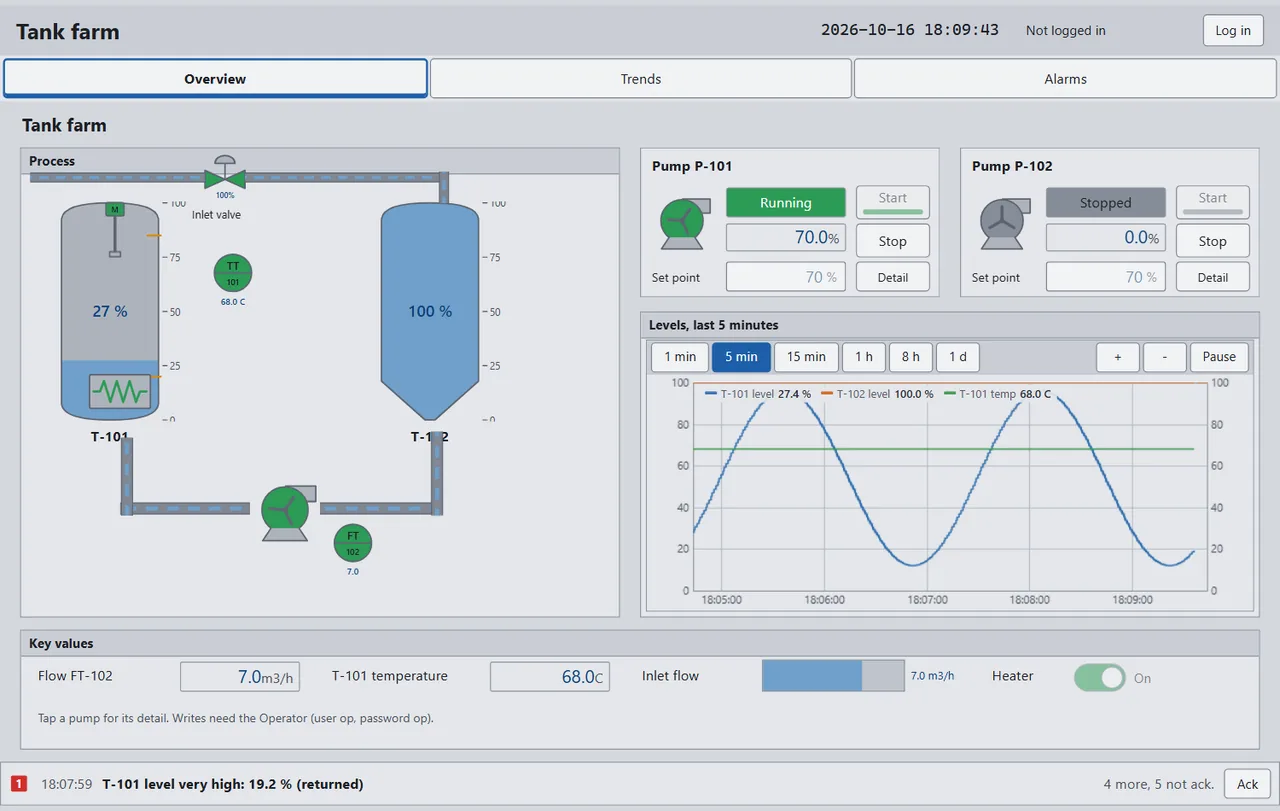
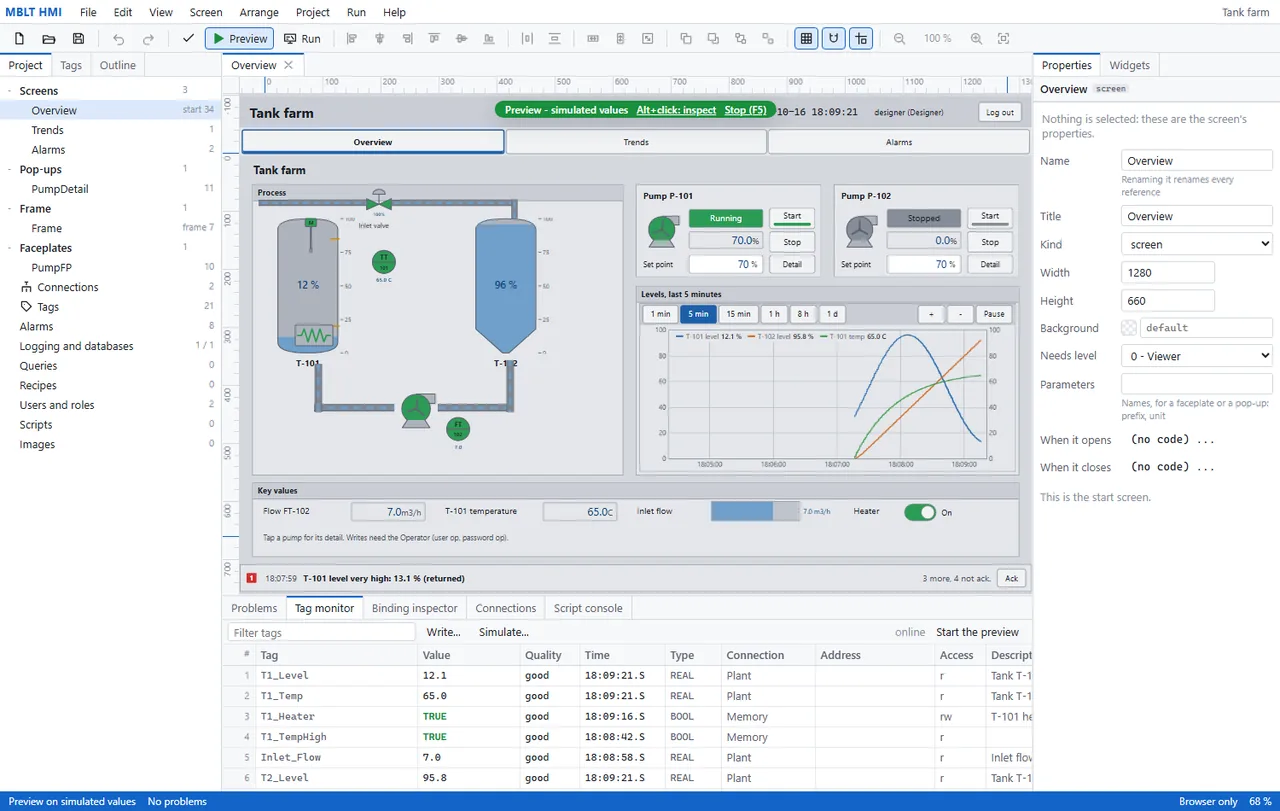
Preview runs the screen inside the designer on simulated values, with alt-click to inspect any widget and F5 to stop. The tag monitor underneath is the honest view: every tag with its value, its quality, the time it last changed, which connection it came from and whether this screen may write to it. The alarm banner is live too, with four still unacknowledged.
Making it a station
The four things that decide whether it can go on a machine.
A screen that reads a simulator is a drawing. These are the parts that make it something an operator can be given: what it talks to, what it watches when nobody is looking, where the record goes, and who may touch it.
-
1
Point it at something real
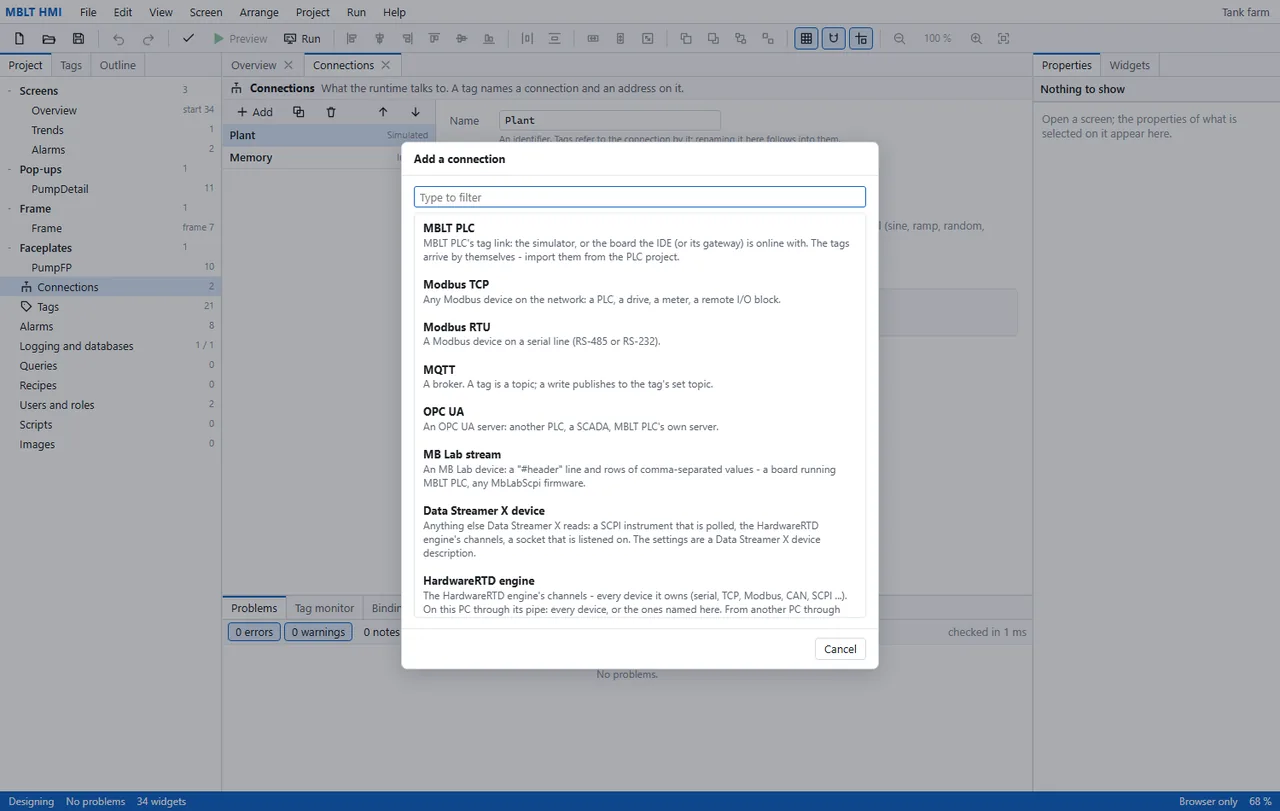
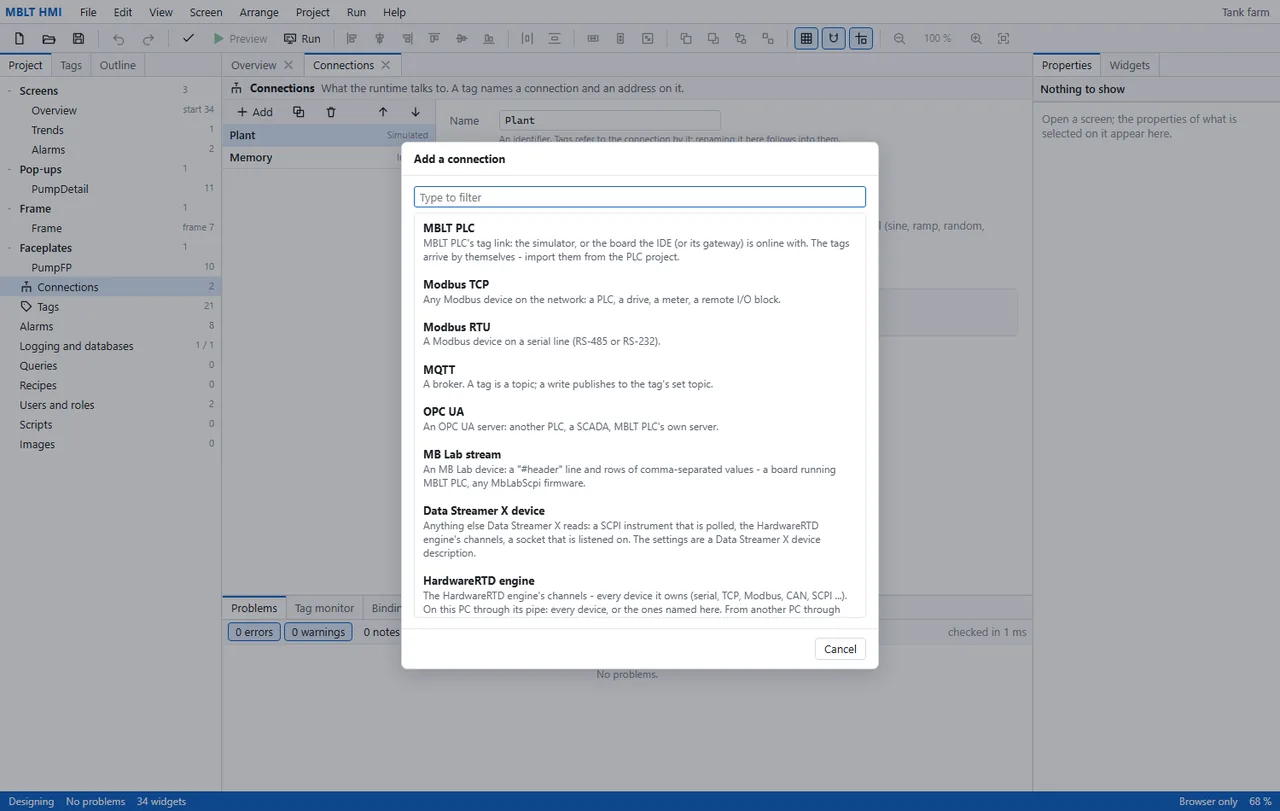
A tag names a connection and an address on it, and this is the list of what a connection can be. MBLT PLC's own tag link, where the tags arrive by themselves. Modbus TCP for a drive, a meter or a remote I/O block, and Modbus RTU for the same thing on RS-485. MQTT, where a tag is a topic and a write publishes to its set topic. OPC UA, for another PLC or a SCADA. And three that are MB Lab's own - the stream a board emits, a DataStreamerX device, or the whole HardwareRTD engine with every device it owns, over a pipe on this PC or a socket from another.
-
2
Say what counts as wrong
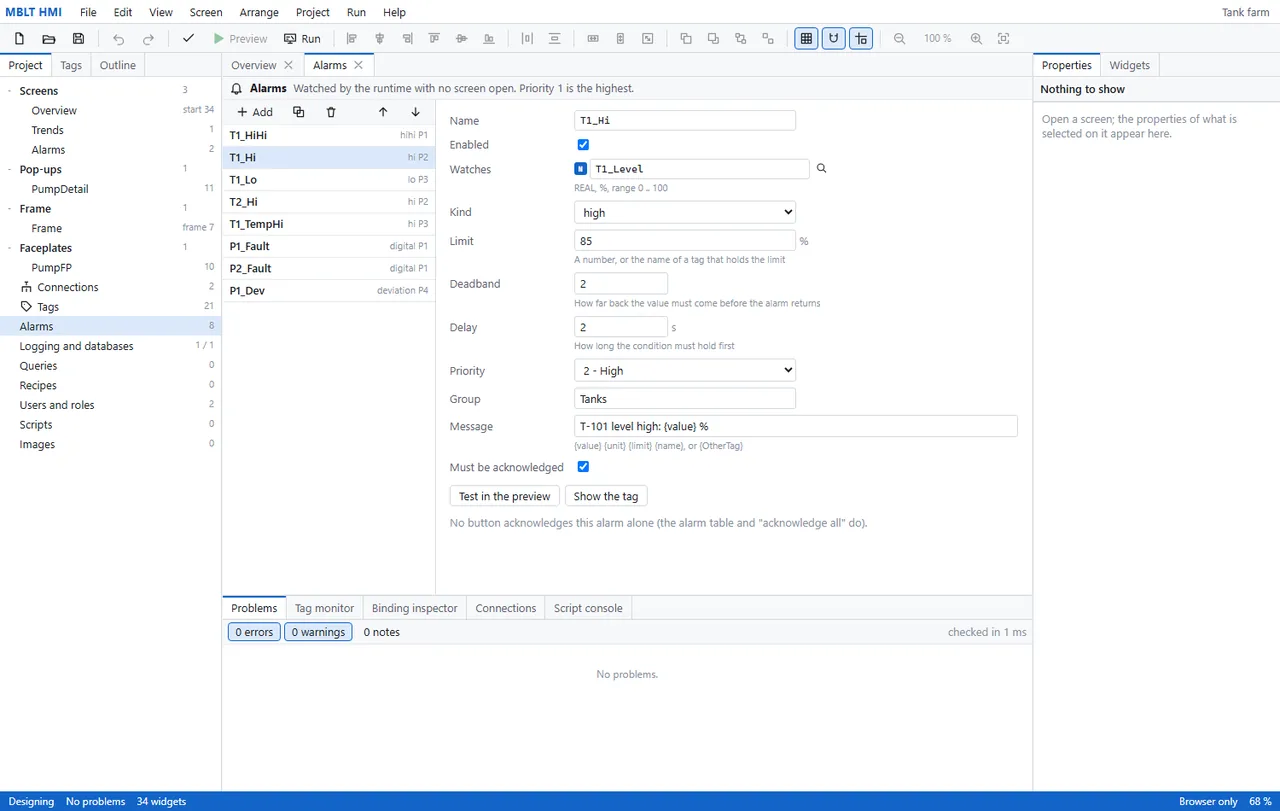
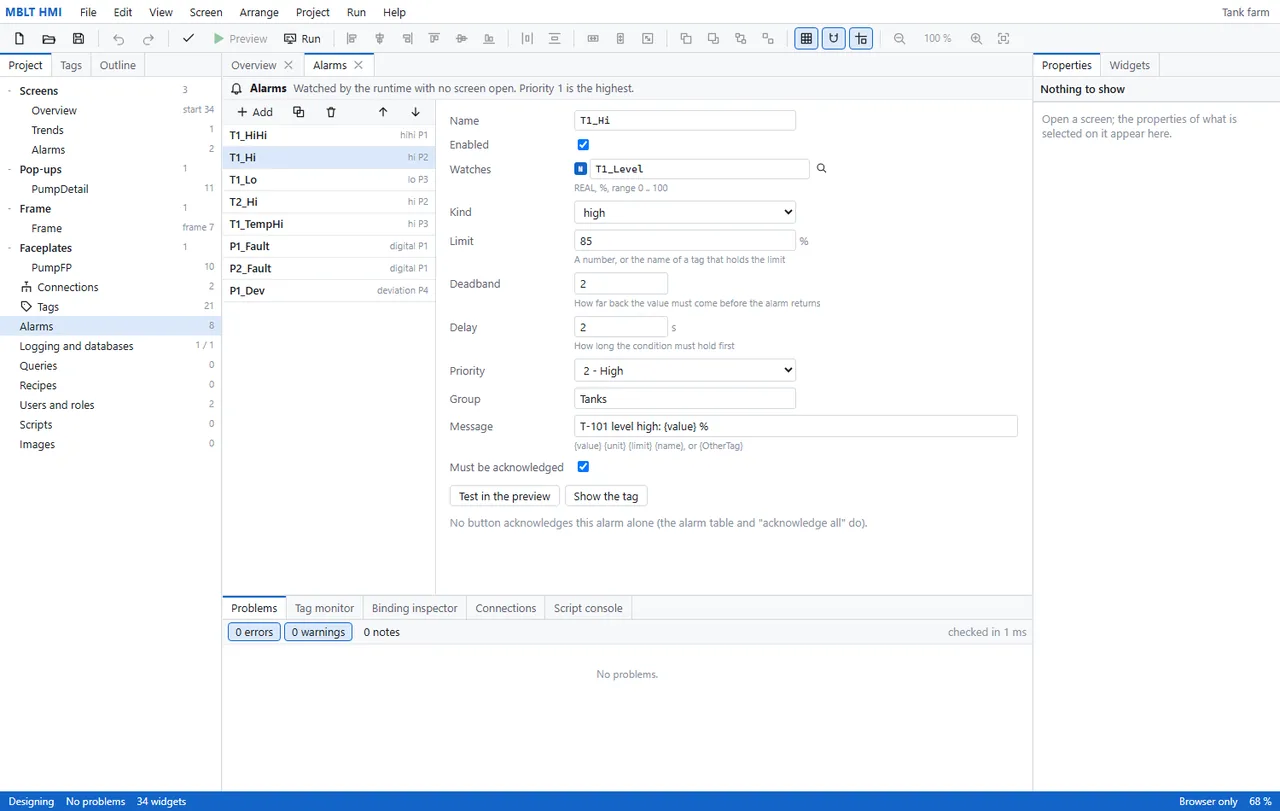
Eight alarms on this project, and the line at the top is the one that matters: they are watched by the runtime with no screen open. An alarm names a tag, a kind - high, low, deviation, digital - a limit that can itself be a tag, and then the two settings that separate an alarm system from a threshold: a deadband, how far back the value must come before it clears, and a delay, how long the condition must hold before it counts at all. The message takes the value, the unit, the limit or another tag by name.
-
3
Decide who is allowed to touch it
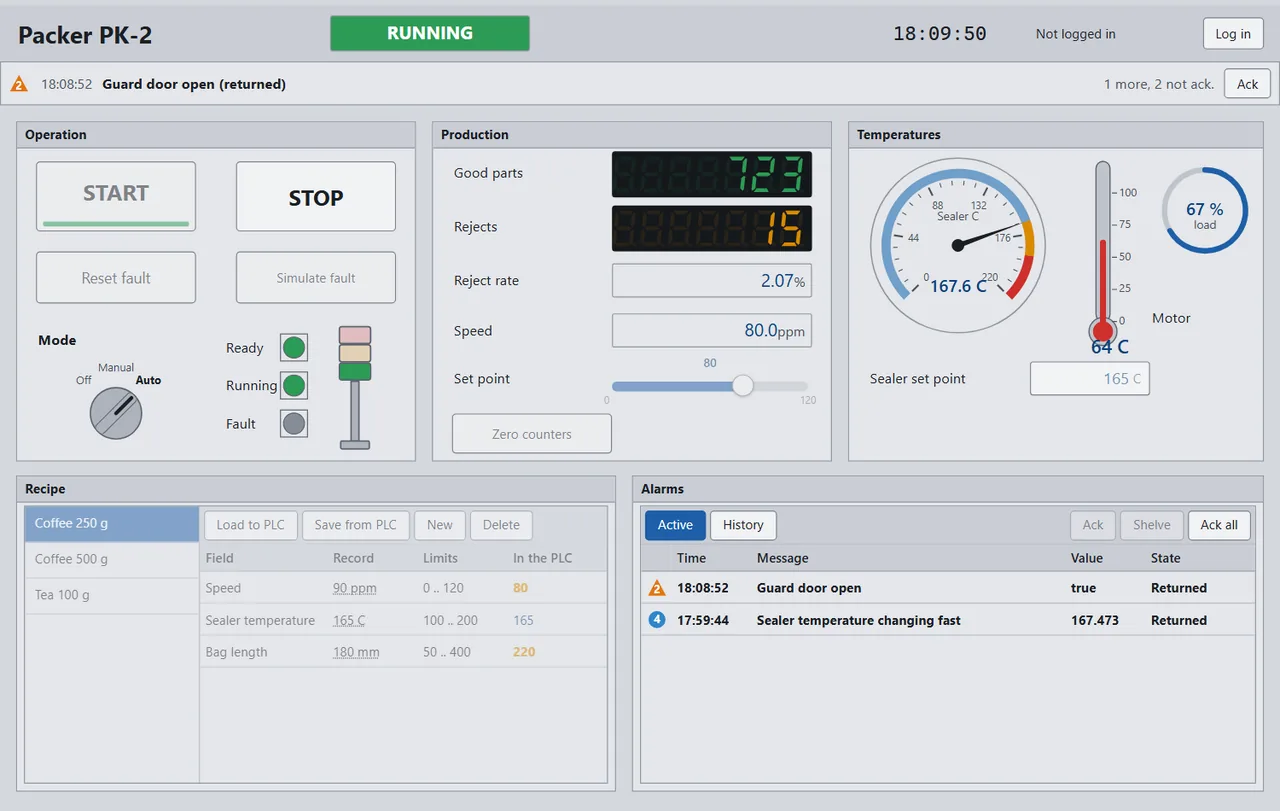
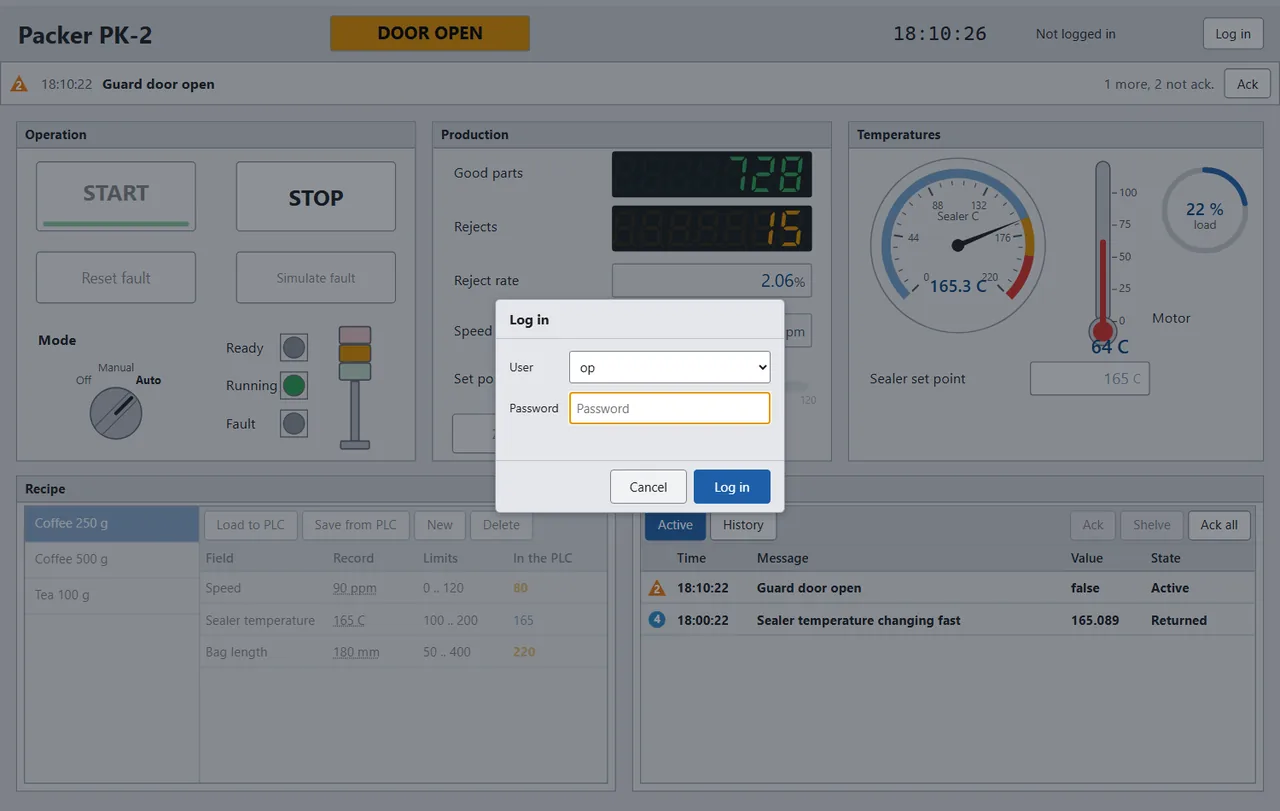
A packing machine at runtime, and the thing to look at is what is greyed out. Nobody is logged in, so reset, simulate fault, the set point, acknowledging an alarm and every recipe button are all disabled - the screen reads perfectly well and writes nothing. The recipe table underneath is doing its own quiet job: the stored record beside what is actually in the PLC, with the two that differ picked out in amber.
-
4
Keep the record
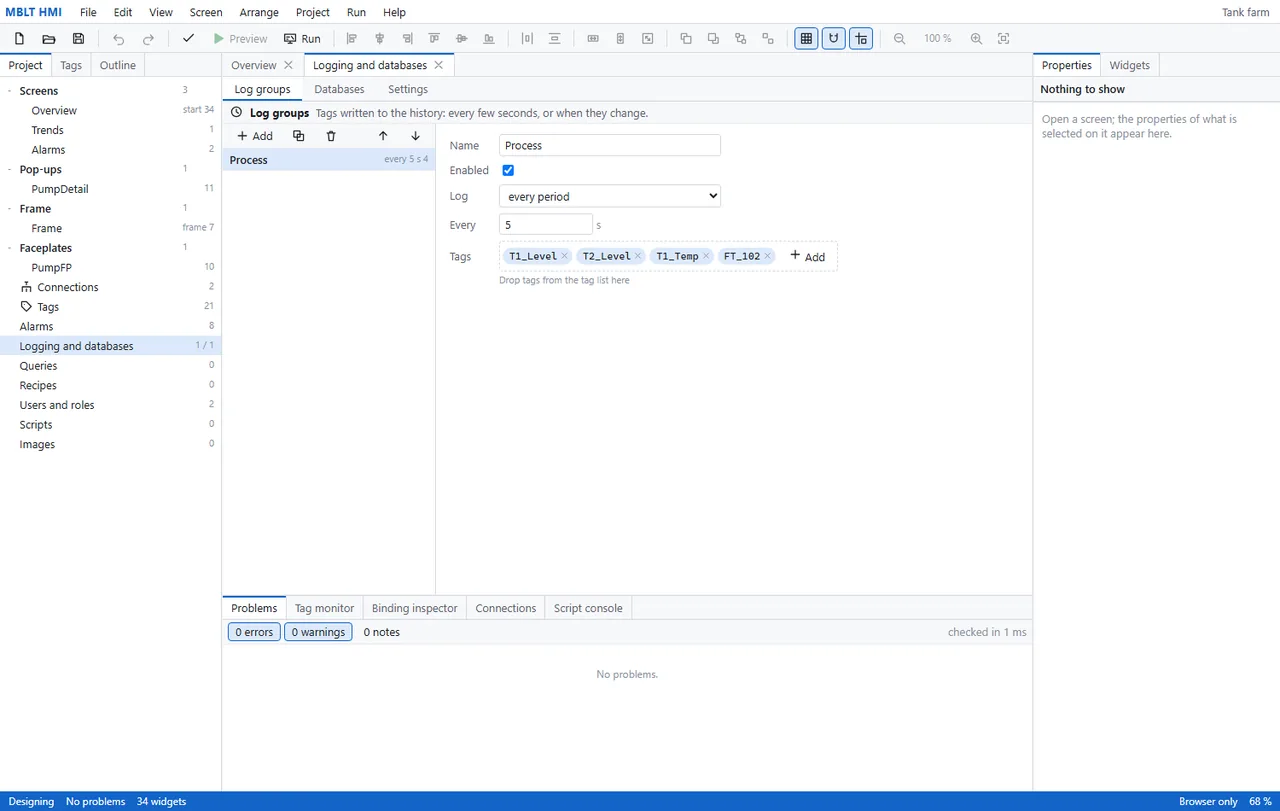
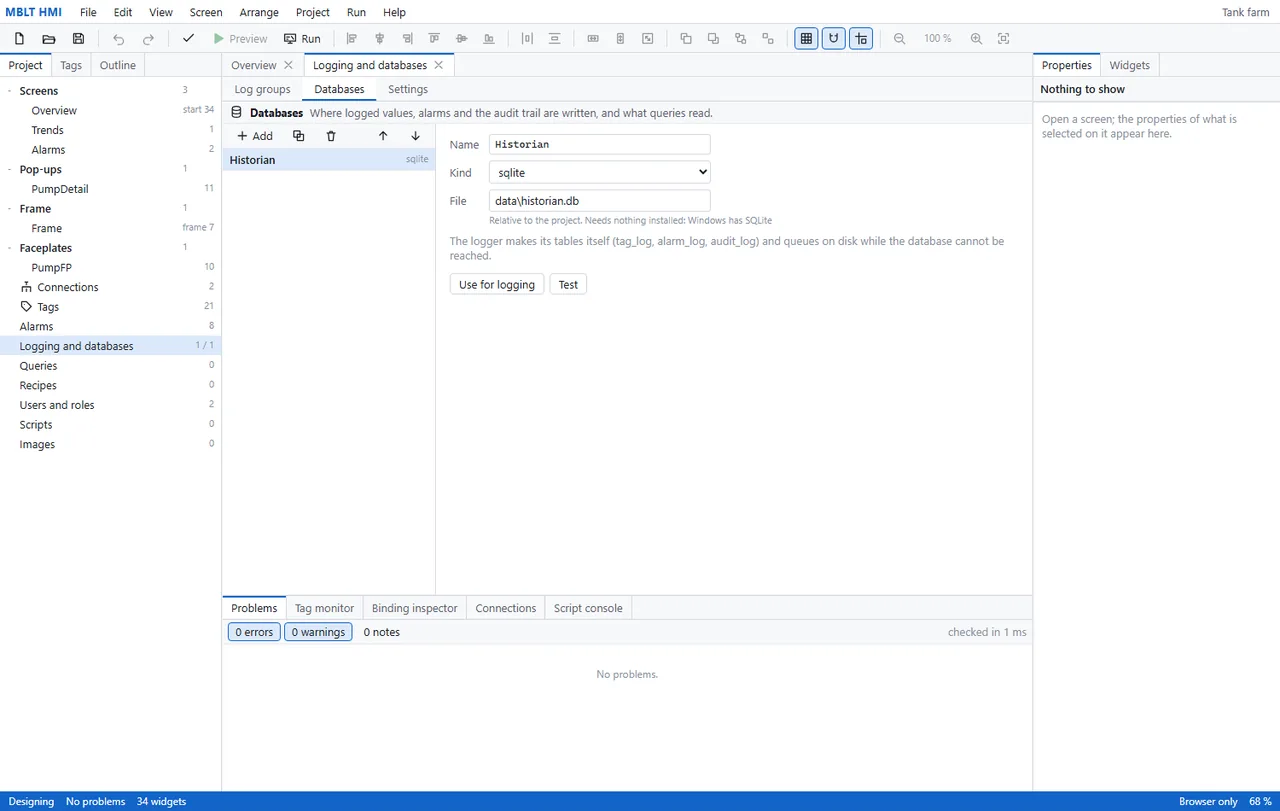
Logged values, alarms and the audit trail, written to SQLite in a file beside the project - and the note says it needs nothing installed, because Windows already has SQLite. The logger makes its own tables: tag_log, alarm_log, audit_log. The last clause is the one earned on a plant floor - while the database cannot be reached, it queues on disk rather than dropping what happened.
Get in touch
Requirements
- Windows 10 or 11, 64-bit
- About 200 MB of disk
- No .NET install needed — the runtime is bundled
- No Excel needed — workbooks are written directly
Also in the set